Customizable Kanban: How to Adapt It to Your Work Without Losing the Method

A customizable Kanban board adapts to your work: its columns, cards, and rules are shaped around your actual workflow, not the other way around. The practical benefit is immediate: you can see where work gets stuck and complete more tasks instead of letting them pile up half-finished. This guide includes ready-made templates, practical steps, and applied examples you can use right away.
In brief:
- If your workflow changes very little, choose a ready-made template; for varied tasks, start with a minimal structure and add columns only when needed.
- Start with a limit of two or three tasks per column, and write visible rules that define when a card can move forward.
- Measure the time from request to delivery and the time from the start to the end of the work to find where the flow slows down.
- Try each change for one or two weeks, then check weekly where tasks are piling up before changing columns or fields.
- If you need many custom fields, consider a database-based board. Account for the greater setup effort and check the export and backup options.
Table of contents
- Customizable Kanban models and templates: which ones to choose
- Kanban principles that stay the same even when you customize
- Practical guide: how to customize a board step by step
- Practical examples: three custom Kanban scenarios
- Tools, integrations, and technical requirements to consider
- What experience and practice tell us about these boards
- The lesson few people really apply
- A practical way to manage customizable Kanban without endless setup
- Frequently asked questions
- Sources
Customizable Kanban models and templates: which ones to choose
You don't need to start from scratch every time. A few templates cover most situations for people working alone or in small teams. The trick is to find the one that comes closest to your actual workflow before changing it.
- Basic board (to do, in progress, done): useful if you manage one type of task and want to start simply.
- Client pipeline: columns such as request, quote, work in progress, review, and delivered, designed for project-based work.
- Editorial calendar: columns for idea, draft, approval, and publication, designed for content with fixed deadlines.
It's best to add only a few useful fields to each card, not ten. A deadline, priority, client name, and estimated time are almost always enough to make quick decisions without opening every card to figure out what to do first.
Whether to start from a template or build from scratch depends on how stable your workflow is. If your type of work changes very little from week to week, a ready-made template saves setup time. If you manage very different processes (for example, consulting as well as content production), it's better to start with a minimal structure and add columns only when you really need them.
If you work alone, you'll find useful ideas in this practical guide to Kanban for freelancers, with examples of workflows already tested on real projects. It's also worth understanding when a Kanban board is the right choice compared with other planning tools: the comparison of Kanban and Gantt explains when each one makes sense.
Kanban principles that stay the same even when you customize
Customizing a board doesn't mean throwing out the method. Some elements need to be preserved because they turn an ordinary board into a system that really works.
The first is the limit on work in progress, often called the WIP limit. It means deciding how many tasks can be in a column such as “in progress” at the same time, and sticking to that limit. Without it, the board fills up with open tasks and nothing ever gets finished: multitasking may look productive, but it slows down every delivery.
Simple sentences written next to each column are enough: “A card enters review only if the assets are attached,” or “A task is considered done only after client confirmation.” Just a few lines, but visible to everyone.
Flow metrics include lead time (the time from request to delivery) and cycle time (the time from the start of work to its completion). Keeping an eye on them, even approximately, tells you whether your system is improving or getting worse.
There's also a change in behavior that matters more than any column or field. As Scrum-master points out, a board without explicit rules, WIP limits, and flow measurement isn't a true Kanban system; it's just a task board. The right question each day isn't “What can I start?” but “How can I help finish something already in progress?”

Practical guide: how to customize a board step by step
Customizing Kanban works best when you follow a clear sequence instead of adding columns and fields at random as you think of them.
- Define the board's goal: decide whether it's for managing one project, your entire client workflow, or daily tasks, and choose the level of detail accordingly.
- Choose consistent columns and sub-states: each column should represent a real stage of your work, not a generic label copied from someone else's template.
- Set WIP limits and simple pull policies: start with low numbers, even just two or three tasks per column, and rules written in a single line.
- Add useful fields and priority rules: deadlines, client, urgency, estimated time, but only the fields you'll actually use to decide what to do first.
- Set a short review cycle: look at the board once a week, check completion times, and make adjustments if something always gets stuck in the same place.
One tip: test each change for one or two weeks before judging it. A board needs a few iterations to show whether the new rules really work.
If you want to see this approach applied to a real case, take a look at how it works over seven days in this workflow for freelancers, with modules and stages already organized. If your work also involves steps that can be automated, such as reminders or sorting requests, take a look at this checklist for starting a process automation pilot. It helps you identify which repetitive steps in your Kanban workflow could be streamlined before you change the columns.
Practical examples: three custom Kanban scenarios
Seeing the method applied to real situations is more helpful than theory alone. Here are some common scenarios for people working alone or in pairs.
Freelancer receiving a steady stream of requests. A typical board has columns for request received, quote sent, in progress, in review, and delivered. The WIP limit on the “in progress” column stays fixed to avoid starting too many projects at once. The priority field is customizable, which is useful when clients have different levels of urgency.

Social media manager with an editorial pipeline. Here, the columns follow the content cycle: idea, draft, client approval, scheduled publication, published. The required approval step stays fixed to prevent publishing without confirmation. Fields for platform and asset format can be customized. A ready-made workflow for this type of work is described in this workflow for social media managers.
Small team. Here, it's useful to add swimlanes for each person so you can immediately see who is working on what. Handoff policies stay fixed: these are the rules that determine when a task moves from one person to another. The level of detail in shared checklists can be customized and expanded as the project becomes more complex.
Tools, integrations, and technical requirements to consider
A truly customizable Kanban board also depends on the tool you use, not just the rules you write. There are several categories to choose from, and it's worth working out which one best fits the way you already work.
- Boards with built-in templates: designed to help you get started quickly without complicated setup.
- Database-based boards: more flexible when it comes to custom fields, but they often take more time to set up initially.
- Dedicated mobile apps: useful if you update task statuses while away from the office.
Whatever the category, a few integrations can make a real difference in day-to-day use: calendar synchronization, deadline notifications, a field linked to client data, and the ability to attach or send documents without complicated steps.
On the technical side, it's worth checking mobile access, the ability to export or back up your data, and where that data is stored. The last point matters increasingly to people in Europe who handle client information. Verified Capterra reviews are still a useful starting point for comparing how other professionals rate the ease of customization and actual modularity of available Kanban tools.
What experience and practice tell us about these boards
The people writing these guides have long followed how individuals and small teams work, observing which boards last over time and which are quickly abandoned. The practical cases gathered in the workflows linked in this article come from real situations involving freelancers and small teams, not abstract theory.
It's also worth looking at how platforms designed to let you activate only the modules you need work. In this respect, storing data in Europe and being able to manage tasks, documents, and contacts in one modular space make life much easier for people who don't want to spend hours configuring complex software.
If you want to start with a ready-made model, you can look at the templates mentioned above or try a complete workflow directly.
The lesson few people really apply
The most common mistake isn't choosing the wrong template; it's filling the board with columns and fields before understanding where work really gets stuck. Simple rules always beat elaborate structures: a few columns with a respected WIP limit are better than an overly complex setup that gets ignored. Try, measure, adjust: you build a Kanban system by looking at what happens, not by imagining it at a desk.
— Fabrizio
A practical way to manage customizable Kanban without endless setup
If you manage contacts, appointments, and tasks across several different tools, you probably know the constant hassle of keeping everything in sync. With KeSbatty, you activate modules only when you really need them, including Kanban, without having to configure every single field or column from scratch.
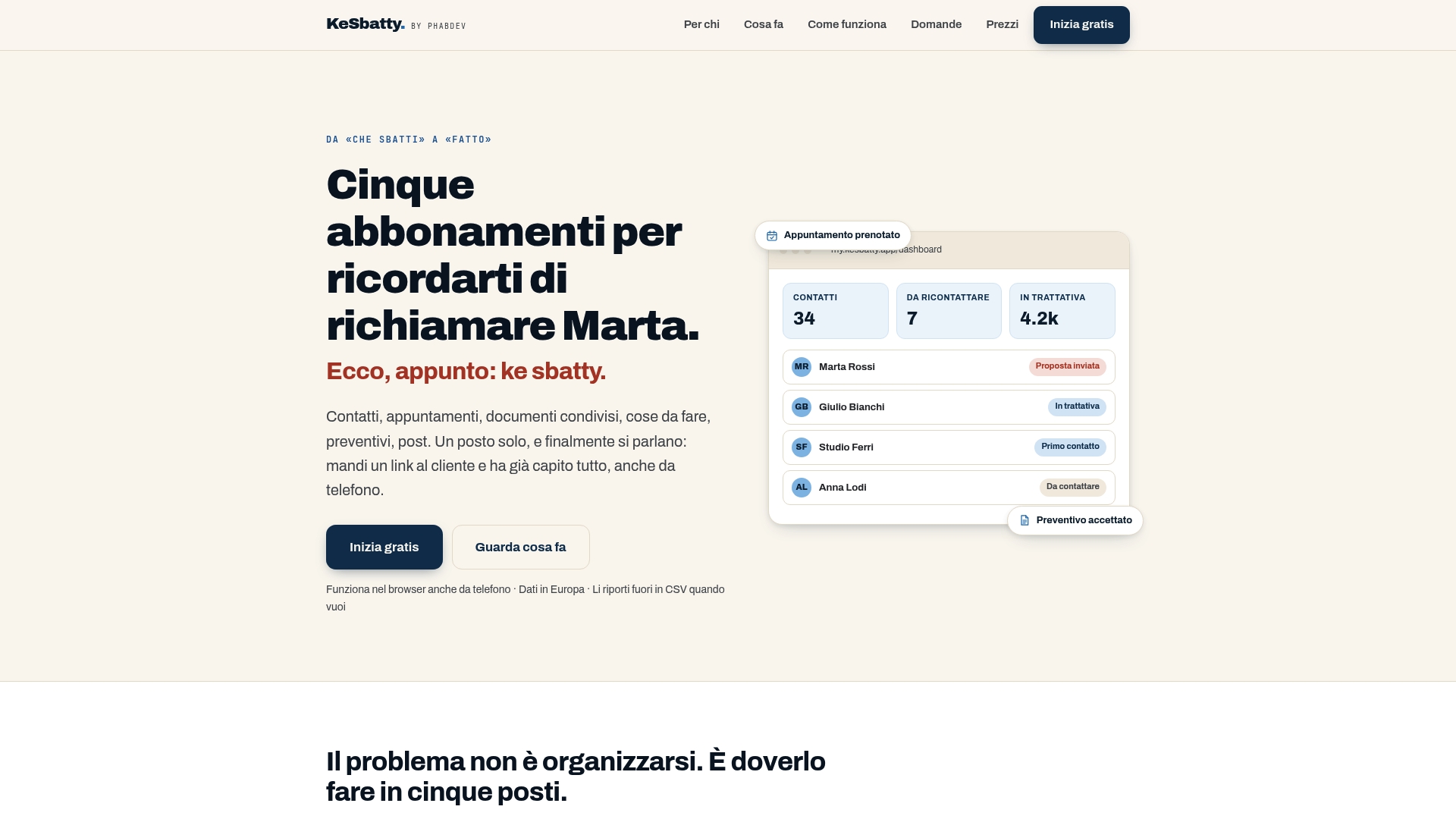
Along with a customizable board, you can centralize contacts and tasks, send quotes and documents through a public link without requiring the client to log in, and keep everything in one place instead of scattered across different apps. Data is stored in Europe, and export is always available when you need to move it.
For current prices, visit Kesbatty. Take a look at Kesbatty and choose the plan that best suits the way you work.
Frequently asked questions
What does the Kanban method involve?
Kanban is a work management method based on a visual board divided into columns representing the stages of a process. Its real value lies in work-in-progress limits and the rules for moving tasks between columns, not just in the board itself.
What is a good Kanban software tool?
It depends on how much you need to customize fields, integrations, and WIP limits compared with a simple standard board. Verified reviews on Capterra offer a useful comparison of people's experiences with different work management tools, while tools with modules you can activate as needed reduce initial setup time.
What are the differences between Kanban and Scrum?
Kanban uses a continuous flow without fixed cycles, while Scrum organizes work into sprints of a set duration with specific roles. For people working alone or in small teams, Kanban is often easier to adapt, as explained in the comparison of Kanban and Gantt for project management.
What are Kanban boards?
Kanban boards are a visual representation of a workflow, organized into columns that show the status of each task. Each card moves from one column to another according to specific rules, such as the WIP limits and transition policies described in this guide.
How do I create a Kanban board suited to my work?
Start with a template close to your actual workflow, then customize columns and fields only where you really need to. Add WIP limits, simple policies, and a short review cycle, as described in the practical guide above, to check whether the changes work before making them permanent.