How to Integrate Your Calendar with Your CRM Without Creating Duplicates

To integrate your calendar with your CRM, use meeting invitations when interoperability and reliability matter, an ICS subscription when a read-only view is enough, and a two-way API integration only if you really need to make changes in both places. In every case, create a test appointment before trusting the system and check that the record appears where it should.
In brief:
- Meeting invitations are a good choice for reliable updates when you manage a small number of appointments in real time, helping you avoid conflicts or duplicates.
- Google Calendar synchronization requires careful field mapping and attention to read-only or editing permissions, with verification tests before you rely on it.
- For Apple iCloud, you need to generate app-specific passwords and remember that they are automatically revoked when you change your main password.
- An ICS subscription works only as a view for reference and can involve synchronization delays; it does not guarantee immediate updates in the CRM.
- When integrating with Outlook, sharing through delegation or an ICS link can lead to delays of several hours, while internal rules help keep calendars consistent.
Table of contents
- How to connect Google Calendar to your CRM step by step
- Connecting iCloud and Apple Calendar to your CRM: what you need to know
- Outlook and Microsoft 365: sharing, delegation, or an ICS subscription?
- Invitations, ICS, or API: which method should you choose for your CRM?
- What you need for a reliable API integration
- Privacy and GDPR: what to check before synchronizing
- A 20-minute checklist for testing synchronization
- When one platform is better than multiple synchronizations
- My take on calendar and CRM: less automation, clearer rules
- Try KeSbatty to bring your calendar and contacts together
- Sources
- Frequently asked questions
How to connect Google Calendar to your CRM step by step
Google Calendar is the most common starting point because almost every CRM has a native connector or supports OAuth authorization. The process takes just a few minutes, but it is worth doing carefully because the permissions you grant today remain active until you revoke them.
- Go to the CRM's external account settings and select Google Calendar as the provider to connect.
- During OAuth authorization, choose whether to grant read-only or editing access: the first option is enough if you only want to read events; the second is needed if the CRM must create or update appointments.
- Select the specific calendar to synchronize and map the field that will link each event to the corresponding contact in the CRM.
- Create a test appointment and check that the record is created or linked to the right contact correctly.
Google itself makes clear that accessing a calendar that is not yours requires the owner's explicit consent, and that connected applications can receive read-only or editing permissions depending on what you authorize, as explained in its official guide to sharing a calendar. If something is wrong after the test, the problem is almost always with the contact field mapping, not the connection itself.
Connecting iCloud and Apple Calendar to your CRM: what you need to know
Apple handles authentication differently from Google, which creates a little more friction for people who mainly work on a Mac or iPhone. Before you start, check that Calendars is enabled among the services on your Apple Account; otherwise, the CRM will not find anything to synchronize.
- Generate an app-specific password at appleid.apple.com when the CRM asks for one: it is not your main password, and it is specifically meant to limit risks if access is unauthorized.
- You need to have two-factor authentication enabled on the account to generate this password.
- Enter the generated credentials in the CRM panel and select the iCloud calendar to connect.
- Remember that if you change your main Apple Account password, app-specific passwords are automatically revoked and you will need to generate a new one.
Apple clearly documents this behavior in its guide to passwords and calendar synchronization: automatic revocation is not a bug; it is an intentional security measure. If synchronization stops one day for no apparent reason, check there first.
Outlook and Microsoft 365: sharing, delegation, or an ICS subscription?
Outlook offers more options than most calendars, and choosing the wrong one is the most common reason updates arrive late or not at all.
- Sharing with a named person: you can share your calendar with a specific person and choose between viewing, editing, or full delegation. Delegation is useful if someone manages appointments on your behalf, not just to view them.
- Subscription through an ICS link: get a URL from Outlook's sharing settings and use it to subscribe to that calendar in another tool, including your CRM if it supports this format.
- Expectations for update timing: this is the point almost nobody explains well. Microsoft itself says ICS subscriptions can update with delays, often on the order of a few hours, as confirmed in its official documentation on calendar sharing in Outlook.
If you need a cancellation or rescheduling to appear in the CRM immediately, ICS is not the right tool: a direct meeting invitation is better, or, if the volume justifies it, delegation with editing permissions. An ICS subscription is still perfect if you just want a visual reference and do not expect real-time updates.
Invitations, ICS, or API: which method should you choose for your CRM?
There is no universally best method: it depends on how much you need changes to travel in both directions and in real time.
- Meeting invitations: they work with almost any calendar, handle cancellations well, and do not require complex setup. They are the most reliable method for people who work with clients on different platforms.
- ICS subscription: great for a view you can consult, poor if you expect immediate updates. It works as a secondary reference, not as an operational source.
- API integration or two-way synchronization: it scales better when you manage many appointments, but requires correctly configured OAuth, solid field mapping, and deliberate error handling.
A tip: Decide from the outset which calendar is the “source of truth” and write a couple of lines of internal rules about where new events are created. It is the simplest way to prevent you and a colleague from creating two different appointments for the same client.
What you need for a reliable API integration
If you choose a two-way integration, some technical details make the difference between a system that works and one that creates more problems than it solves.
- OAuth authorization must request the right scopes: reading events is different from being able to edit them, and many errors come from permissions that are too narrow or too broad.
- According to the technical documentation on calendar and CRM synchronization, webhooks tend to deliver notifications at least once, sometimes more than once: the system must be designed to be idempotent and to deduplicate using external event IDs.
- Deleted events often arrive with only the ID and no other details: always keep an external reference key so you can recognize them.
- Before enabling webhooks in production, backfill historical events to avoid gaps and conflicts in the first few days.
Privacy and GDPR: what to check before synchronizing
Connecting a calendar to a CRM means personal data is being transferred, often including data about third-party clients who have not given explicit consent for that specific integration.
- Identify who is the data controller for this data and document the operation in the record of processing activities, as required by the guidance of the Italian Data Protection Authority.
- Apply the data minimization principle: synchronize only the title, time, contact reference, and appointment status—not free-text notes or sensitive details the CRM does not need.
- Check the contracts with the external providers involved, especially if any data is transferred outside the European Economic Area: in that case, adequacy safeguards or standard contractual clauses are needed.
- Keep written evidence of the choices you made and prepare a quick revocation plan in case the integration needs to be disabled.
Compliance is not a one-time task you can forget about: it needs to be updated whenever the flow of data between the calendar and the CRM changes.
A 20-minute checklist for testing synchronization
Before trusting the system in production, follow this minimum verification sequence.
- Decide which calendar is the primary source and write down the internal rule for where new events are created.
- Authorize the connection, select the right calendar, and map the fields that link the event to the CRM contact.
- Create a test appointment and check the participants, any meeting link, and that the time displays correctly on both sides.
- Edit and then delete the test event: check that the update and deletion propagate as expected.
- Set a periodic check (even just monthly) and keep a rollback plan ready, with credential revocation and error logs.
A tip: Do not test with an “empty” event: use a realistic fake name and a time that is coming up soon, so you can immediately see whether the contact mapping works or whether the CRM leaves the event unattached.
When one platform is better than multiple synchronizations
Every added synchronization is another point that can break: a missed webhook, an expired OAuth token, an ICS feed that updates hours later. A platform like KeSbatty brings contacts, appointments, and calendars together in one place, with modules that you activate only when needed and no login required for clients to share documents. For a freelancer or micro-team, that means fewer pieces to fit together and less chance of something getting lost between systems.

My take on calendar and CRM: less automation, clearer rules
When people talk about integrating a calendar and CRM, the temptation is to jump straight to the most sophisticated integration possible: two-way, real time, with webhooks everywhere. It is the mistake I see repeated most often. Most independent professionals do not need that level of complexity, and building it means adding a point of failure that nobody will know how to diagnose when it stops working on a Friday afternoon.

Here is the counterintuitive advice: choose the rule before you choose the tool. An ICS subscription, which many people treat as a lesser solution, is often the most sensible choice if you just want to see your commitments without chasing real-time updates.
The real priority is not the technology; it is understanding how many calendars you are actually managing and whether they really need separate systems or one home where they live together.
— Fabrizio
Try KeSbatty to bring your calendar and contacts together
Some platforms let you bring contacts, appointments, and your calendar together in one place, reducing the need to piece together a set of mandatory configurations one by one.
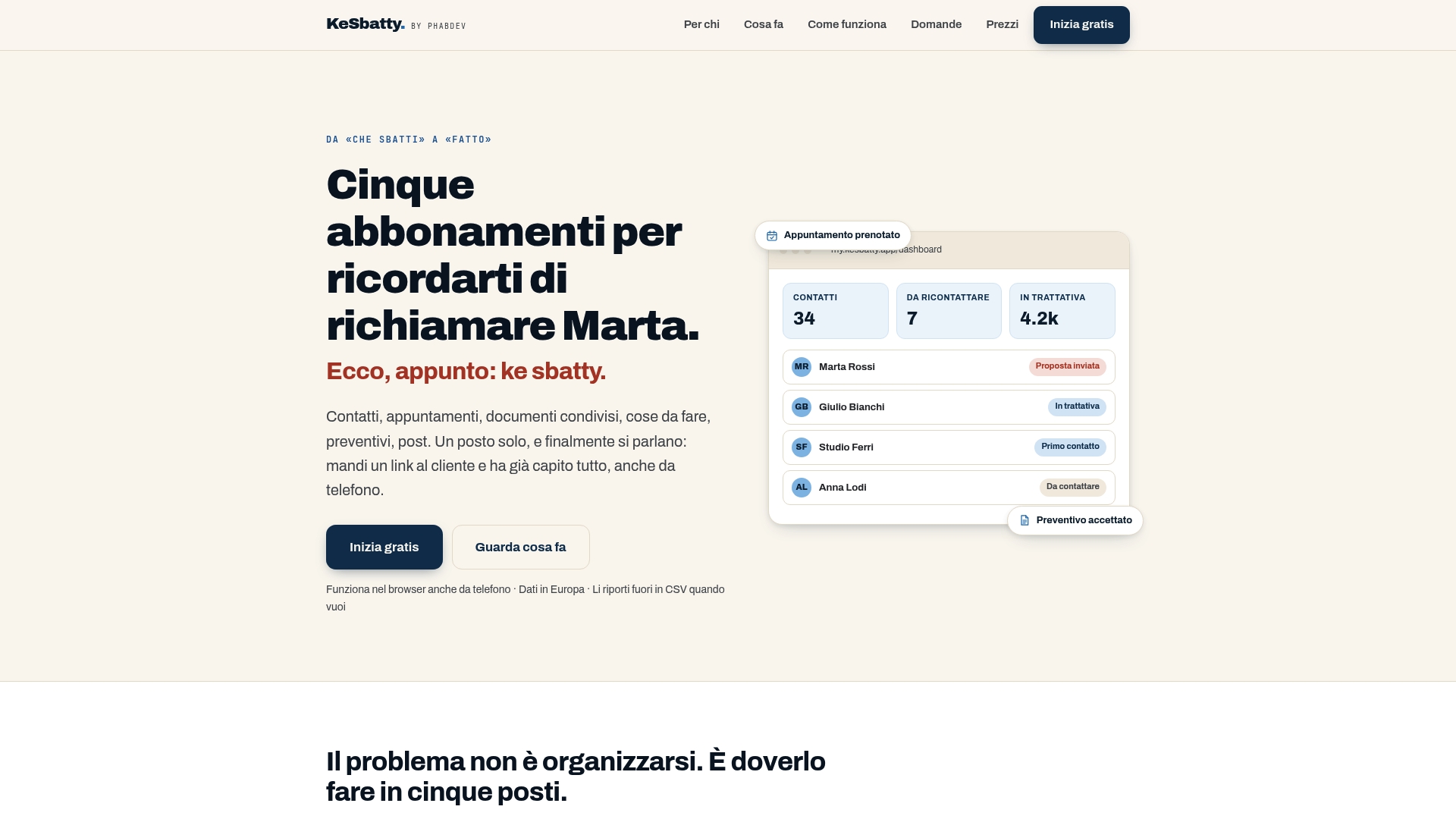
Some platforms offer free versions up to a certain number of contacts and paid plans with access to advanced modules, keeping data in Europe with the option to export it and no long-term commitment. If you manage appointments and clients from several sources at once, go to Kesbatty and start the trial to see how much time you get back without having to paste different calendars together by hand.
Sources
- Share calendars in Outlook
- How to share your calendar (Google Calendar support)
- Add Google Calendar events to Apple Calendar — Google Calendar Help
Frequently asked questions
How do you synchronize a calendar with a CRM?
Authorize the CRM to access your Google, Apple, or Microsoft account through OAuth, select the right calendar, and map the fields that link each event to the corresponding contact. A test appointment will quickly confirm whether the connection is working as expected.
What are the best apps for synchronizing calendars?
Google Calendar, Apple Calendar/iCloud, and Outlook/Microsoft 365 remain the most widely used standards, and each offers granular sharing permissions. A platform like KeSbatty can centralize appointment management along with contacts and tasks, so you do not have to coordinate multiple separate synchronizations.
How do I add an external calendar to my main calendar?
In Google Calendar, use the “Add calendar” feature and enter the email address or ICS link shared by the owner. The process is similar in Outlook and Apple: import the subscription link or accept the sharing invitation you received.
How do I set up my calendar correctly for a CRM?
First decide which calendar is the primary source for appointments, then connect it to the CRM, choosing read-only or editing permissions based on what you need. Always test with a dummy event before considering the integration ready to use.
How much does it cost to integrate a calendar with KeSbatty?
The Full Toolbox costs €12 per month or €120 per year with all modules active. You can always find current prices on Kesbatty.