Import Gmail Contacts into KeSbatty in Half an Hour, with Tags for Freelancers

Yes, you can import your Gmail address book into KeSbatty in a few steps: export your contacts to CSV, clean up the file, upload it to the CRM, and check the results. The process takes no more than half an hour, but do two things before clicking “import”: back up your existing data and temporarily disable automations and workflows. That way, KeSbatty won’t start sending emails or reminders to people who aren’t expecting them.
In brief:
- Always make a complete backup of your contacts before importing new data so you can easily restore the previous version if something goes wrong.
- Prioritize active, recent contacts, and avoid importing obsolete or unnecessary lists that would clutter your CRM.
- Use email as the unique identifier to prevent duplicates, and choose an import mode that updates existing contacts.
- After importing, check the data, remove any duplicates, and fill in empty fields before reactivating automations or workflows.
- Carefully format phone numbers, emails, and dates to ensure the import succeeds and the data is high quality.
Contents
- Before you start: backups, contact selection, and import tags
- Get your Gmail contacts into a clean CSV
- Importing into KeSbatty: uploading, mapping, and handling duplicates
- Checks and cleanup after importing
- Different ways to get contacts into Gmail before exporting
- Gmail’s practical limits to know before exporting
- How to manage contacts in Gmail after importing
- How to fix the most common import errors
- Why this process works for people who work alone or in pairs
- Try importing with KeSbatty and bring clients, appointments, and tasks together
- Sources
Before you start: backups, contact selection, and import tags
Before touching any “import” button, protect what you already have. This isn’t pointless bureaucracy: it’s the difference between losing an afternoon fixing duplicates and rolling back in two minutes.
- Export a complete backup of your current KeSbatty contacts in CSV format. If something goes wrong during the import, this file is your safety net for restoring the previous version without stress.
- Select only useful contacts. Don’t import the entire Gmail address book you’ve accumulated over ten years: bring in only active clients or recent contacts. “Dead” lists clutter your CRM and make every future search harder.
- Add a tracking column, such as
import_batch, with a clear label likeimport-gen-2026. This tag lets you isolate all the records from that specific import at once, if you need to correct or delete them. - Disable automations and workflows before uploading the file. An import of hundreds of contacts that triggers bulk actions can set off unwanted automatic emails or reminders at exactly the wrong moment, as guides on safe CRM imports point out.
Tip: Before importing everything, try a file with 100–200 records that follows the same format. It takes five minutes and helps you catch mapping problems before they affect your whole address book.
Get your Gmail contacts into a clean CSV
The format that works best for importing into KeSbatty is a CSV with clear headings: First name, Last name, Email, Phone, Company, Notes. Gmail already exports in this format, but the raw file is rarely ready to upload as is.
First, take care of phone numbers: use the international E.164 standard (for example, +393331234567) so the CRM doesn’t read different formats as separate contacts. If you track dates, such as the date of first contact, use the YYYY-MM-DD format to avoid ambiguity between European and American systems. Above all, treat the email address as the primary identifier for each row: it’s the field you’ll use to deduplicate later.
You don’t need complicated tools for the initial cleanup:
- Excel or Google Sheets with the UNIQUE formula or the “remove duplicates” function to delete repeated rows before you even open KeSbatty.
- A quick visual check of empty columns to see which fields are actually missing and which are just formatted incorrectly.
- A filter for emails with obvious errors (spaces, strange characters, incomplete domains).
One detail many people overlook: the practical guidelines for importing leads note that every platform has a file-size limit and a limit on how many rows you can upload at once. If your Gmail address book has more than a few thousand contacts, it’s a good idea to split the import into batches of 500–1,000 rows. It’s slower, but much easier to check for errors.
Importing into KeSbatty: uploading, mapping, and handling duplicates
With the CSV ready, the process in KeSbatty follows a straightforward pattern, common to most modern CRMs.
- Open the Contacts module and look for Import (or Settings → Import data, depending on your account’s current configuration).
- Upload the CSV file and move to the mapping stage: here, you assign each column in the file to the corresponding CRM field. Check the required fields carefully, because mapping a field like Name or Email incorrectly will cause the whole row to fail.
- Choose the identifier for deduplication. Email is the most reliable choice because, unlike a name, it is (almost) always unique. Also choose the import mode: add only new contacts, update existing ones, or use upsert, which does both depending on whether the contact already exists.
- Read the validation report. A good import process follows the steps upload, map, validate, import, as described in contact management guides. If some rows fail, the report tells you exactly which ones and why, so you can fix and reupload them without starting over.
- Check the automation option. If KeSbatty offers a “don’t run automations during import” setting, turn it on before confirming. It’s the same principle as making a backup: a precaution that takes a second and can prevent hours of cleanup.
On field mapping and choosing a unique identifier, Pipedrive’s technical guidance on importing from spreadsheets confirms the same principle: email is the most reliable reference for avoiding duplicates, much more so than a full name or phone number, which can have different formats in different systems.
Tip: If the import produces an error file, don’t ignore it or force the full upload through anyway. Take ten minutes to fix those rows: it’s faster than discovering duplicates or missing contacts three weeks later, perhaps in the middle of a client follow-up.
Checks and cleanup after importing
A successful import doesn’t mean the work is done. Check a few things carefully before considering the address book ready for everyday use.
- Spot-check 10–20 recently imported contacts: make sure the name, email, phone, and company landed in the right fields and that no columns were switched.
- Filter by the
import_batchtag you created during preparation. This immediately isolates all records from that specific import, which is useful if you find a systematic error and need to fix it in bulk rather than one record at a time. - Run a final deduplication. Even with a clean file to start with, a duplicate can slip through; a second check closes the loop.
- Update any fields that are still empty by comparing them with the original source if you notice recurring gaps in a particular field.
Only reactivate automations and workflows after you’ve confirmed that the import is clean and free of systematic errors. Doing it too soon is the most common way to end up with automatic emails sent to the wrong contacts or duplicates that haven’t been resolved yet.
Different ways to get contacts into Gmail before exporting
Contacts don’t all end up in Gmail the same way, and that affects how clean the file will be when you bring it into KeSbatty. If you imported contacts from another email account (for example, Outlook or an old work address), Gmail adds them to your main address book, but often with misaligned fields: phone numbers without an international prefix, company names written in different formats, or notes pasted into the wrong field. It’s worth checking these contacts “imported from elsewhere” more carefully than the others because they tend to carry over inconsistencies from the original system.
Another common method is importing through a vCard file (.vcf extension), typically used when transferring contacts from an old phone or another email service. Gmail converts vCards into address book entries, but exporting them to CSV for KeSbatty can create empty fields or duplicates with formatting that differs slightly from entries typed in by hand.
If you manage several sources (Outlook, old CRMs, phone address books exported as vCards), the most sensible approach is to consolidate everything in Gmail first, let it settle for a few days, and only then export to KeSbatty. One clean export beats three partial imports done in a rush.
Gmail’s practical limits to know before exporting
Gmail doesn’t have a realistic limit for most freelancers (we’re talking about thousands of contacts that can be managed without problems), but a few technical constraints are worth keeping in mind before you start exporting.
The exported CSV file can grow quickly if the address book includes long notes or several custom fields: an oversized file can slow down both opening it in Excel and uploading it to KeSbatty. If you notice unusually long upload times, that’s almost always the reason.
There’s a practical rather than theoretical ceiling on the number of contacts you can manage in a single export: beyond a certain point, it’s still best to split the file into smaller batches, not so much because of a limit imposed by Gmail but to make the next review manageable. CRM import-limit guidelines confirm that almost every destination platform sets a row limit for each upload, and KeSbatty is no exception. If your address book has more than a few thousand rows, plan from the start to import batches of 500–1,000 contacts so each batch is easy to check and, if needed, undo.
How to manage contacts in Gmail after importing
Before moving everything to KeSbatty, many professionals keep Gmail as a backup address book or use it to sync with their phone, which calls for a few practical precautions.
Groups (or labels, in Gmail’s newer terminology) let you organize contacts into categories, but these labels often don’t translate into a field KeSbatty can use when you export to CSV. If you need the categories in your CRM too, it’s best to recreate them as tags after importing instead of hoping the file will carry them over.

Mobile device syncing is another thing to watch: if you edit a contact directly on your smartphone after you’ve already exported to KeSbatty, that change will stay in Gmail until you export again or update the CRM manually. There is no automatic two-way sync between Gmail and KeSbatty: it’s a one-time transfer, not a real-time connection. If you often update contacts on your phone, the most practical solution is to set a regular schedule, such as monthly, to bring the latest changes into the CRM.
How to fix the most common import errors
Formatting errors are the most common cause of imports that fail in part. A typical case is a column the CRM expects in a particular format (an email without spaces, a phone number with an international prefix) arriving in a different format: a single extra space in an email address is enough for the entire row to be rejected. The validation report KeSbatty generates after each import attempt is the right tool for finding these issues row by row, rather than manually checking hundreds of records.
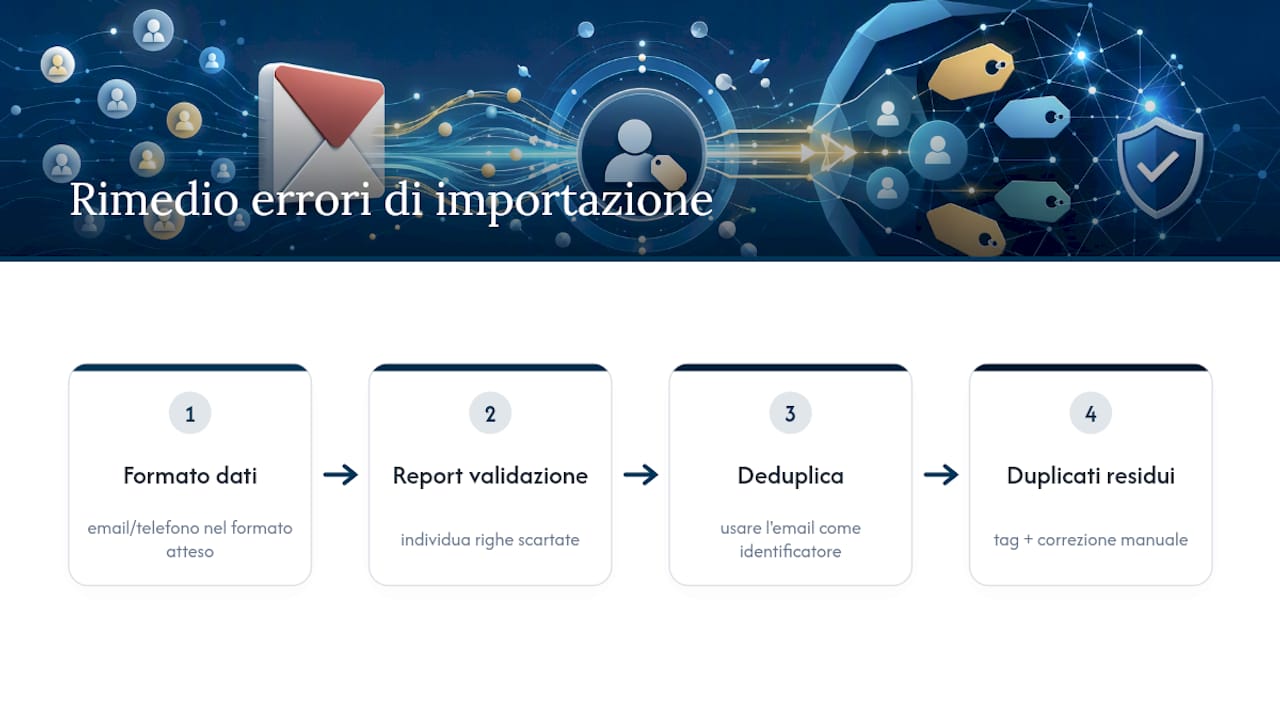
Persistent duplicates, on the other hand, almost always have a specific cause: the identifier used for deduplication isn’t unique enough. If the system deduplicates by full name, two different people named “Marco Rossi” could be merged by mistake. Or the same contact with slightly different email addresses (because of a typo or an old address) could end up with two separate records. Switching to email as the unique identifier, as technical CRM import guides also recommend, resolves most of these cases.
If a few isolated duplicates remain after you’ve corrected the errors, the quickest fix is to go back to the import_batch tag: filter, check the few remaining records, and fix them by hand without redoing the entire import from scratch.
Why this process works for people who work alone or in pairs
I’ve seen many freelancers put off importing their contacts for months, convinced it would be half a day wasted. With a well-prepared file, it isn’t: the real time goes into cleaning up the CSV, not uploading it to KeSbatty.
KeSbatty’s optional modules really come into their own here: you can import contacts and turn on only appointment management, or only the Tasks module, without having to configure a complete system you’ll use for just 20% of its features. For a two-person micro-team, that means saving time with every client you add and reducing contact errors that happen when information is scattered between Gmail, an Excel spreadsheet, and someone’s memory.
The real result isn’t having “contacts in a CRM.” It’s no longer losing track of who you called back, when, and why.
— Fabrizio
Try importing with KeSbatty and bring clients, appointments, and tasks together
Once your Gmail address book is clean and exported, the next step is to give it a home that does more than simply store contacts. KeSbatty imports the CSV with customizable field mapping, recognizes email as an identifier to prevent duplicates, and lets you tag each import batch so you can find it easily later.
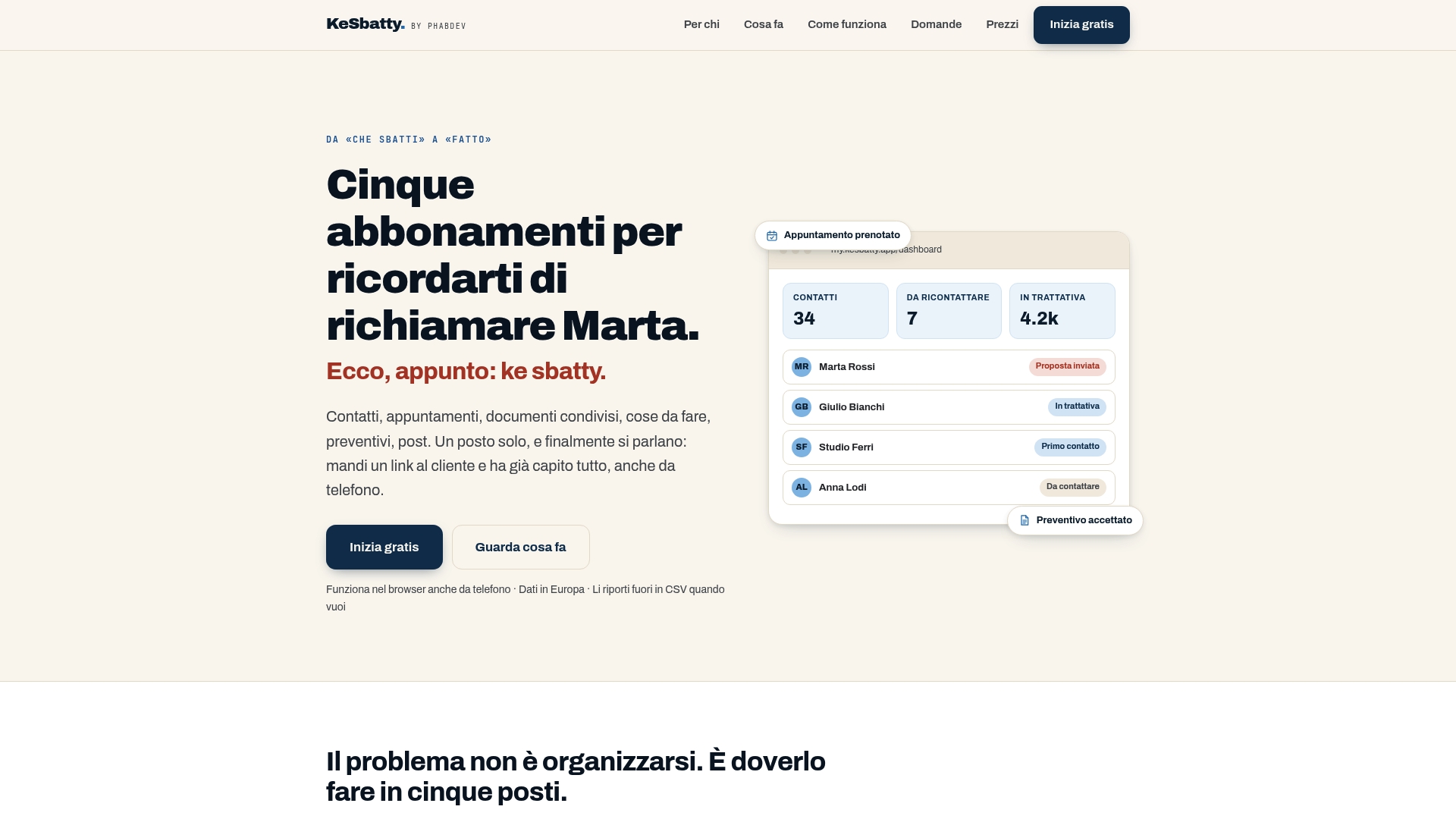
Unlike an Excel spreadsheet or an address book scattered across several apps, imported contacts here connect directly to appointments, tasks, and work kanban boards: when you call a client back, their history with you is already in front of you. You turn on modules only when you need them, so the initial setup takes zero mental effort. For authorization and privacy around imported data, it’s always worth consulting resources such as these security and privacy guidelines before connecting external accounts to any platform.
You can try the entire import process for free with up to 100 contacts: register for an account at KeSbatty and test the process described above with your real address book before deciding whether to unlock the advanced modules.
Sources
If you want to explore the technical details, several resources cover specific topics discussed in this guide: the practical guidelines for importing leads go into file formats and data cleanup; respond.io’s contact import documentation describes the upload-map-validate process common to many CRMs; and the guidance on safe imports and Pipedrive’s technical guide to importing from spreadsheets cover backups, automations, and field mapping in more detail.