Appointment Reminder Emails: What to Write and When to Send Them
Use email for immediate confirmation and an advance reminder as part of a multichannel sequence: email 48 hours beforehand, SMS or WhatsApp 24 hours beforehand, and a final touchpoint 2–3 hours beforehand if it’s really needed. Email alone isn’t enough to prevent no-shows because it may be read too late or ignored, but it remains essential for details, rescheduling links, and documents. Add a more immediate channel for urgent notifications and you’ll have the whole sequence covered.
In brief:
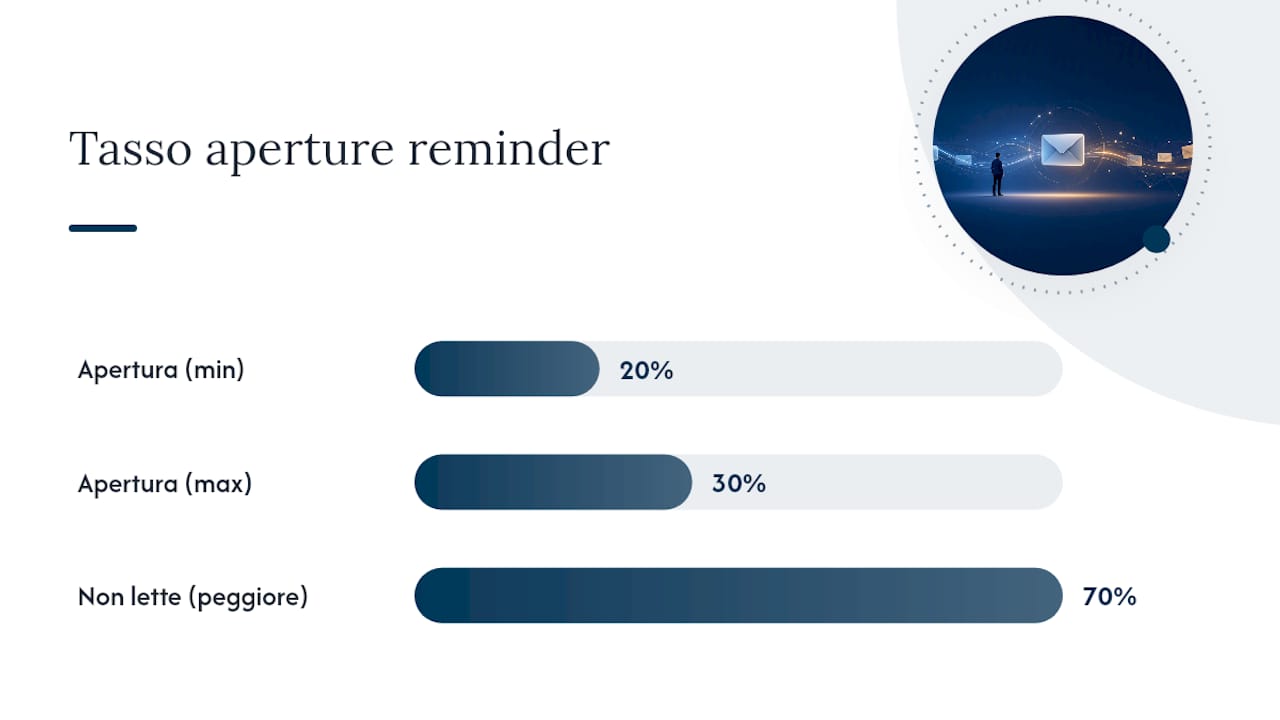
- Email alone has an open rate of 20% to 30%, making it difficult to prevent no-shows without complementary, more immediate channels.
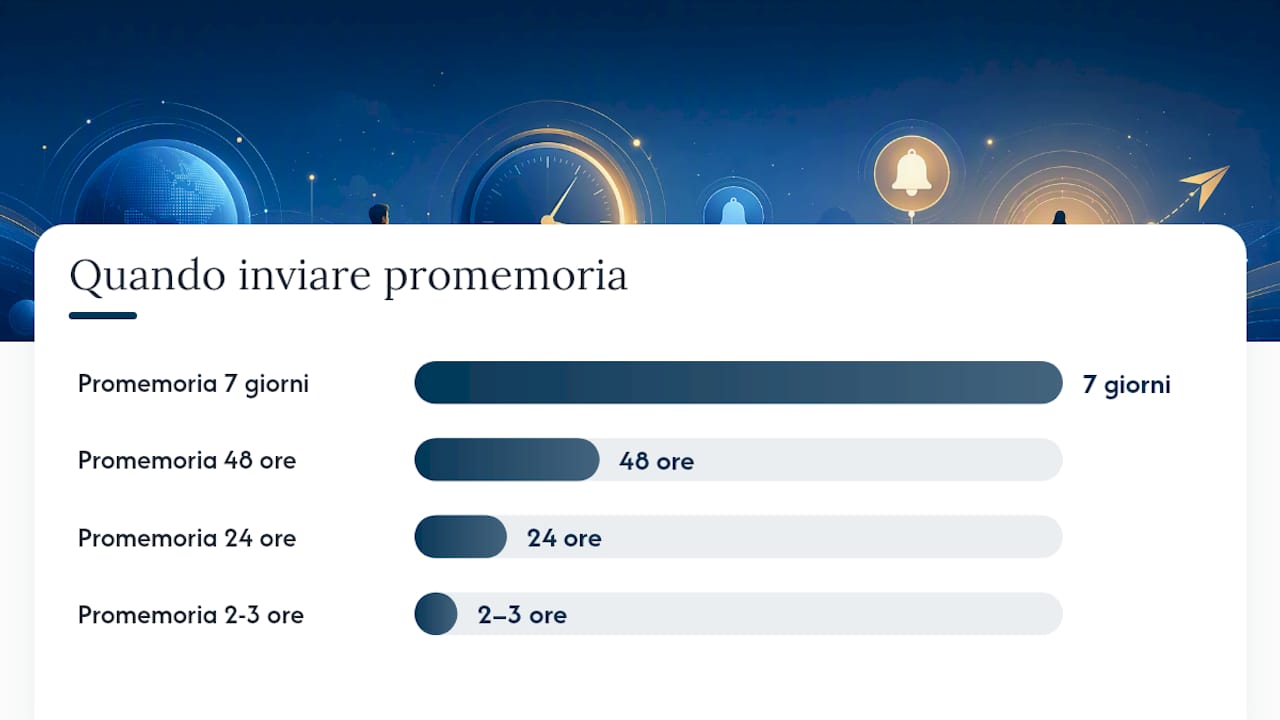
- An effective sequence includes immediate confirmation, reminders at 48 hours and 24 hours (by SMS or WhatsApp), and optionally one 2–3 hours beforehand. Adjust it to your industry and appointment type.
- To reduce absences, it’s advisable to limit the total number of contacts to 3–4, so you don’t risk coming across as commercially pushy.
- Automated personalization of the subject line and message increases the chances that clients will read and act on it, especially when it includes links to reschedule or cancel.
- An integrated system like Kesbatty makes it easier to automate, manage, and send reminders, saving time and reducing technical errors.
Contents
- Why email alone isn’t enough to prevent no-shows
- When to send reminders: a cadence that works
- Subject lines, copy, and ready-to-use appointment reminder email templates
- How to automate sending without technical errors
- Personalization and advanced automation to increase open rates
- Which numbers to track to see if it’s working
- Why an integrated platform makes all this easier
- Simplicity or advanced automation: how to decide
- Try Kesbatty to manage appointments and reminders in one place
- Sources
- Frequently asked questions
Why email alone isn’t enough to prevent no-shows
Appointment reminder emails have a fundamental problem: you open them when you want to, not when the person waiting for you at your office needs you to. In Italy, the average open rate for transactional emails is between 20% and 30%, which means that, in the worst case, seven out of ten clients don’t read the email at all before their appointment. Add the risk of spam, overflowing inboxes, and Gmail and Outlook’s aggressive filters, and you can see why so many professionals feel let down when a client disappears “without warning” despite having received a reminder.
That said, email is still the cheapest and most versatile channel you have. It costs nothing (or almost nothing as part of a management plan), has no character limits like SMS, and lets you include everything you need: a map, documents to bring, and a cancellation link.
Here’s where email wins and where it falls short:
- Advantages: no cost, unlimited space for details and links, ideal for formal confirmations and documentation.
- Limitations: low immediacy, no guaranteed opens, and the risk of ending up in Promotions or spam.
- Best use: email for the initial confirmation and the 48-hour reminder; SMS or WhatsApp for the more urgent notice closer to the appointment.
A tip: Don’t judge how effective email is by its open rate alone. Even if the client reads it the next day, the message remains in their inbox as written proof of the appointment, which can be useful if there’s a dispute.
When to send reminders: a cadence that works
A sequence that really reduces absences isn’t a one-off message but a series of steps spread across the days before the appointment. Industry guides converge on a very similar approach, which you can replicate almost exactly in any service business:
- Immediate confirmation, as soon as the appointment is booked, by email or in-app message.
- 48-hour reminder, by email, with all the details and a link to reschedule.
- 24-hour reminder, by SMS or WhatsApp, which is more direct and has a higher read rate.
- Optional reminder 2–3 hours beforehand, by SMS, reserved for critical appointments or clients who have a history of forgetting.
This structure, also described by Simplybook, balances effectiveness with respect for the client’s tolerance: nobody wants three notifications a day for a haircut.
If you work in a high-frequency sector, such as hair salons, beauty centers, or physiotherapy practices with appointments every 30–60 minutes, you can shorten the sequence: an email confirmation and a single SMS 24 hours beforehand are enough. If, on the other hand, you manage consultations booked weeks in advance (lawyers, accountants, coaches), it’s worth adding a 7-day reminder as well as the one at 48 hours, because the client’s memory fades sooner.
A tip: Set a maximum of 3–4 total contacts per appointment. Beyond that threshold, clients perceive reminders as commercial pressure, which hurts their perception of your service instead of helping it.
Subject lines, copy, and ready-to-use appointment reminder email templates
The subject line determines whether the email gets opened or deleted at a glance. Avoid vague phrases like “Reminder” or “Don’t forget”: be specific, for example, “Reminder: appointment with [Name] on [Date] at [Time].” Readers should understand what the message is about without even opening it.
The message body follows a simple rule: the first two lines should answer what, when, and where; everything else is secondary detail. Put the cancellation or rescheduling link immediately after that, clearly visible and not hidden at the bottom after three paragraphs of pleasantries. A visible rescheduling link turns potential no-shows into timely cancellations, giving you a chance to reassign the slot instead of discovering an empty space at the last minute.
Here are three template options you can adapt to your tone:
- Formal: “Dear [Name], this is to confirm your appointment on [Date] at [Time] at [Location]. To change your booking, click [here]. Kind regards, [Practice/Business].”
- Neutral: “Hi [Name], just a reminder about your appointment with [Provider] on [Date] at [Time]. Need to change the date? Click [here]. See you soon!”
- Informal: “Hey [Name], see you on [Date] at [Time]! If anything changes, reschedule [here]—no problem.”
The message that works best isn’t the most elegant one, but the one that answers the question “Do I need to do anything?” in three seconds. If the client has to read it twice to figure out where and when, you’ve already lost half the reminder’s effectiveness.
Always add your logo, business name, and a direct contact (phone or email) at the bottom. It’s not just about appearance; it also reduces the clarification requests you get outside business hours.
How to automate sending without technical errors
Setting up automation takes only a few steps, but you should check each one before letting the system run on its own. Here’s the process:
- Choose the trigger: it can start from Google Calendar (new event = scheduled email), booking software with built-in automation, or SMTP/API if you manage everything in-house.
- Schedule the intervals: set reminders for 48 and 24 hours before the appointment, not before the event was created.
- Test an actual send: send test emails to yourself and a colleague, checking that they arrive in the main inbox rather than Promotions.
- Check the time zone: if you work with clients in different time zones, an error can make a reminder arrive at a ridiculous hour or too late.
- Check the links: every rescheduling or cancellation link should work, lead to the right page, and update the calendar automatically.
- Connect the channels: use email for details and SMS or WhatsApp for urgency, all within the same automated sequence, so you don’t have to send anything by hand.
Good technical deliverability practices also recommend periodically monitoring bounce rates, because an outdated email address can stop the entire automation for that contact.
A tip: Before turning on automation for your entire contact list, test it with 10–15 contacts for a week. You’ll uncover any formatting or time zone problems before they affect hundreds of appointments.
Personalization and advanced automation to increase open rates
A generic email gets ignored; a personalized email gets read. The difference comes down to a few automated fields that the system fills in for you, so you don’t have to write anything by hand each time.
- Essential fields: client name, booked service, provider or professional’s name, and a quick link to manage the appointment.
- Channel preferences: some clients prefer email, others a direct message. Save their preference and respect it instead of forcing everyone onto the same channel.
- Language preferences: if you work with international clients, set the template to the right language instead of sending everything in Italian.
- Duplicate checks: make sure the system doesn’t send two identical reminders if an appointment is changed and then confirmed again.
- Anti-spam checks: use correct headers and a verified sender, and avoid words that filters penalize (such as “free” or “urgent” in all caps).
These steps don’t require advanced technical skills: most modern management platforms already offer them, and you just need to turn them on once and let them run.
Which numbers to track to see if it’s working
Measuring how effective your reminders are doesn’t require complicated dashboards. You just need to track four numbers consistently over time.
- Open rate: how many emails are actually opened, which helps you see whether the subject line is working.
- CTR on the rescheduling link: how many people click to change their appointment instead of disappearing without warning.
- No-show rate: the final metric that really matters, to compare month over month.
- Advance cancellation rate: if it rises after you add a visible link, it means you’re recovering slots that would otherwise have been lost.
To make real improvements, test one variable at a time: change only the subject line for two weeks, then change only the send time. If you see the no-show rate fall after adding an SMS 24 hours beforehand, but it doesn’t change when you adjust only the email, you’ll know where to invest your time. Email alone rarely makes a dramatic difference to the number of absences; the improvement almost always comes when you combine it with a more immediate channel.
Why an integrated platform makes all this easier
Managing confirmation emails, automatic reminders, and documents to send with three different tools is a perfect recipe for wasting time and letting appointments slip through the cracks. Kesbatty was created for people who don’t want to spend the day stitching together Google Calendar, an email service, and a separate tool for quotes.
With Kesbatty, you can manage your calendar and appointments, turn on automatic reminders, and send documents through a public link without requiring the client to log in. Modules are activated only when you need them, so if all you need today is reminder management, you can start there and add the rest later. For a freelancer or a two-person micro-team, that means having one place to check who has confirmed, who still needs to reply, and where the documents you sent last week ended up. The data is stored in Europe, a detail that matters a great deal to many Italian professionals, especially those who work with clients who are sensitive about privacy.
Simplicity or advanced automation: how to decide
The question I’m asked most often is: “Do I really need a multichannel system, or is email with a link enough?” The honest answer depends on volume. If you manage around ten appointments a week, a well-written email with a rescheduling link will take you a long way without needing anything else. If you exceed 30–40 bookings a week, every percentage point of no-shows has a real impact on revenue, and that’s when investing in SMS or WhatsApp can pay for itself. My practical advice: always start with email, track your no-show rate for a month, and only then decide whether to add a more expensive channel. Testing before investing helps you avoid buying solutions you’ll never really use.
— Fabrizio
Try Kesbatty to manage appointments and reminders in one place
Kesbatty is an alternative to piecing together five different tools to manage clients, appointments, and documents: one dashboard where you activate only the modules you really need, when you need them.
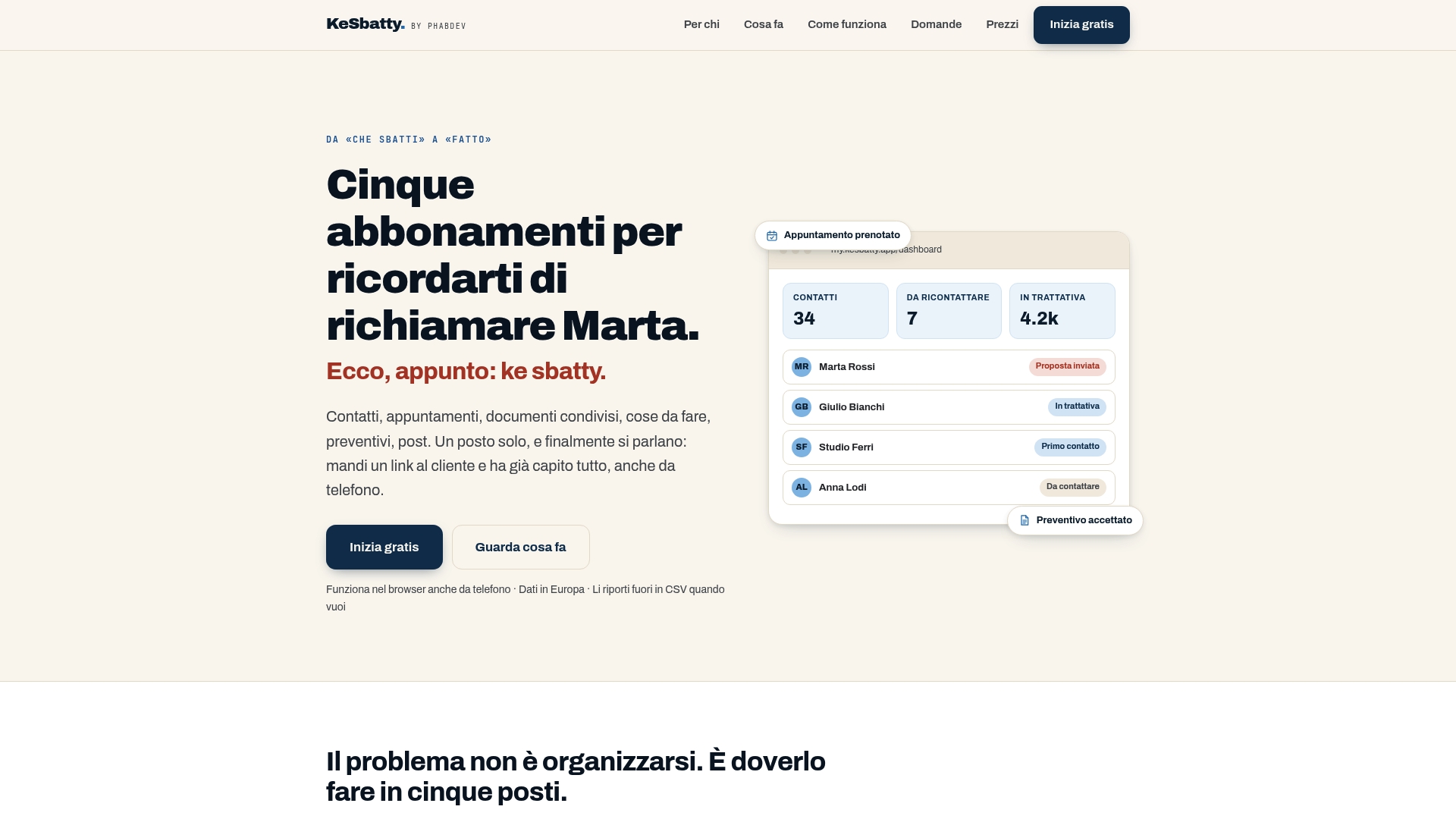
To get started, you need just three modules: calendar and appointments to organize time slots, automatic email reminders so you don’t have to send anything by hand, and document sharing to send quotes or confirmations with a public link the client can open without creating an account. Each module is activated only when you need it, so you don’t pay for features you don’t use or complicate your workflow with unnecessary settings. Keeping contacts, your calendar, and documents in one place means you can stop chasing information scattered across email, spreadsheets, and messaging apps. Visit the Kesbatty page and start the 14-day free trial to see how reminder management works with your real appointments.
Sources
- Appointment reminders: how to reduce no-shows by up to 90%
- Simplybook
- How many appointment reminders to send and when | Guide
Frequently asked questions
How do you write an email to remind someone about an appointment?
Use a specific subject line with the name and date, put what, when, and where in the first two lines, and include a clearly visible link to cancel or reschedule right away.
What should you write to remind someone about an appointment?
Just include the date, time, place or format (in person or online), and who the client will be meeting, followed by a clear option to change the booking.
How do you formally remind someone about an appointment?
Use a courteous tone with phrases like “We’re confirming” or “We’re writing to inform you,” include the essential details, and end with a direct contact for questions.
How can I remind clients about appointments without doing everything by hand?
Set up automation to send emails 48 hours beforehand and SMS or WhatsApp messages 24 hours beforehand. Some platforms let you configure the sequence once and then run it automatically for every new appointment.