Migrating from Excel to a CRM Without Losing Data: A Practical Guide

Follow five steps in this order: inventory, mapping, cleanup, a test import, and a controlled switch. If you follow them, migrating from Excel to a CRM without losing data is manageable even for a micro-team, not a big-company project. At the end, you’ll have a CRM with reconciled history and old spreadsheets archived, not deleted. One caveat: not everything deserves to be migrated, and figuring out what to leave out is just as much a part of the work as figuring out what to bring in.
In brief:
- Migration requires a detailed file inventory, mapping rules, and a test environment before you proceed with the final import.
- It’s essential to profile the data, apply repeatable transformations, and deduplicate carefully, moving relationships before deleting duplicates.
- To avoid losing history, import companies first, then contacts, activities, and finally notes, with test imports using real samples.
- Shared spreadsheets, sensitive data, and inconsistent structures make migration more complicated, requiring dedicated strategies and careful permission management.
- Clear communication and monitoring in the following days are crucial to prevent the team from returning to Excel spreadsheets and to build confidence in the new system.
Contents
- Pre-migration checklist: what to prepare before touching the files
- How to migrate data step by step without losing history
- Shared spreadsheets, business management systems, and personal data: the variations that complicate everything
- Mistakes that send a team back to Excel (and how to avoid them)
- Estimated timelines and what to check after go-live
- Why this method works, and where KeSbatty fits in
- What I really think about this migration
- Try KeSbatty for a migration without the chaos of five different tools
- Useful resources and documentation to learn more
- Sources
- Frequently asked questions
Pre-migration checklist: what to prepare before touching the files
Before opening a single Excel file, agree with the team on who owns what. It sounds obvious, but this is where most disasters start: two people updating different versions of the same customer spreadsheet without knowing which one is the “real” one.
The first concrete step is to inventory the files: for each one, note the owner, purpose (contacts? quotes? activities?), and update frequency. A file that gets edited every day needs a different plan from one updated once a quarter. Taking an inventory and assigning an owner to each file prevents two competing versions from fighting over which one has the true data.
Once you’ve completed the inventory, you’ll need a few concrete artifacts before you start moving rows:
- Backup with checksum: a verifiable copy of the original files, saved in a staging area separate from your working area.
- Mapping dictionary: a document (even a simple spreadsheet) listing every Excel column, its corresponding CRM field, and whether it’s required or should be excluded.
- Identity rules: how you determine that “Mario Rossi Srl” and “M. Rossi S.r.l.” are the same company. You need an alternative key, such as a VAT number or verified email domain.
- Test environment: a CRM account dedicated to testing, separate from the one you’ll use in production.
One tip: Don’t decide on mapping rules by yourself in front of the computer. Ask the people who use the spreadsheets every day which columns are really essential: you’ll often find that nobody looks at half of the “historical” columns anymore.
This phase generally takes one or two actual working days, no more. That’s time that saves you weeks of corrections later.
How to migrate data step by step without losing history
Once the inventory and mapping dictionary are ready, the work itself breaks down into repeatable blocks. Follow this sequence to minimize irreversible errors.
-
Profile the columns. Before transforming any data, measure what each column actually contains: how many unique values, how many empty cells, and how many non-standard formats (dates written in three different ways, phone numbers with or without a country code). This step is often skipped in a rush, but it prevents most of the errors that follow: field profiling and repeatable transformation rules are the foundation of every successful migration.
-
Apply repeatable transformations, not manual ones. Use formulas, text-splitting functions, or regular expressions to standardize formats, but never modify the original file. Work on a copy and always keep the starting version: preserving the original and recording each transformation makes it possible to go back if something goes wrong, and makes the whole procedure repeatable on other similar files.
-
Define your deduplication strategy before deleting anything. Distinguish between confirmed duplicates (same VAT number, same email address) and likely duplicates (similar name, similar company). Merge confirmed duplicates automatically. Check likely ones manually and, above all, before deleting a record, move its linked relationships (activities, notes, quotes) to the record that will remain. Deleting a duplicate without moving its relationships first is the most common way to lose a customer’s history without even realizing it.
-
Import in the right order. Relationships between data matter more than the data itself: import companies first, then linked contacts, then activities, and finally notes. If you reverse the order, the CRM creates orphaned contacts with no associated company, and you’ll have to start over.
-
Run a test import with a real sample. Don’t test with fake data: take 50–100 real records, including complicated cases (duplicate names, empty fields, special characters), and import them into the test environment. Check that the counts match, required fields are populated, and company-contact-activity relationships are intact. Complete backups, pilot tests, and validation checks before the final transfer sharply reduce the risk of unpleasant surprises after cutover. If the test fails, fix the mapping and repeat it; don’t proceed “hoping it’ll work” on the next attempt.
One tip: Keep a version log for your import map, even if it’s just the date and notes on what you changed. By the third iteration it may seem pointless; by the tenth, it’ll save you from applying a mapping twice to the same file.
After each import, whether test or final, generate a report with three numbers: how many records were created, how many updated, and how many skipped (and why). This report lets you say with certainty, “We imported 1,842 contacts; 12 were skipped because of duplicate email addresses,” instead of a vague “It looks like everything went fine.”
Shared spreadsheets, business management systems, and personal data: the variations that complicate everything
Not all Excel files are the same, and some situations call for adapting the standard procedure.
- Real-time shared spreadsheets (Google Sheets or Excel Online used by multiple people): set them to read-only or lock edits in the days immediately before cutover, so nobody updates data that then won’t be migrated.
- Data from accounting systems: not everything in an accounting system belongs in the CRM. Select only the fields useful for the business relationship (name, contact person, summary order history), leaving tax details where they belong, in the accounting system itself.
- Sensitive personal data: if a spreadsheet contains personal notes about customers (preferences, family details collected informally) without clear consent to retain them, consider anonymizing those fields or excluding them from the migration entirely.
- Spreadsheets too inconsistent to combine: when you find twenty files with completely different structures, don’t force a single mapping. Migrate only active data (customers you’re still in contact with) and archive the rest as a separate historical reference.
Mistakes that send a team back to Excel (and how to avoid them)
Most returns to Excel don’t stem from a technical problem with the CRM, but from a mistake in the migration process. Here are the five most common ones.
- Cleaning before mapping. If you start correcting data before deciding where it will end up, you’ll do the work twice. Document the transformation rules first, then apply them.
- Deleting duplicates without moving relationships. Deleting a duplicate contact before transferring its activities and notes to the surviving record means losing that history forever.
- Not testing cutover with a real sample. A test with fake data won’t reveal the problems that real data, with all its imperfections, will bring to light.
- Leaving Excel spreadsheets editable after the switch. If someone keeps updating the old file “out of habit,” you’ll have two conflicting sources of truth within a week.
- Skipping training. Without showing the team a concrete, immediate benefit, confidence in the new system collapses and people go back to the informal methods they knew before.
One tip: In the first week after the switch, send the team a message every day with a concrete number: “Today we logged 8 activities in the CRM instead of having them scattered across email and chat.” It makes the change tangible, not just something you’ve announced.
Estimated timelines and what to check after go-live
How long does it really take? It depends on the complexity, but a few reference points can help you plan. For up to a thousand records with few relationships between companies and contacts, a complete migration generally takes several actual working days. With a large number of records and a complex history of activities and relationships to preserve, it can take several weeks, including the time needed for testing and iterations.
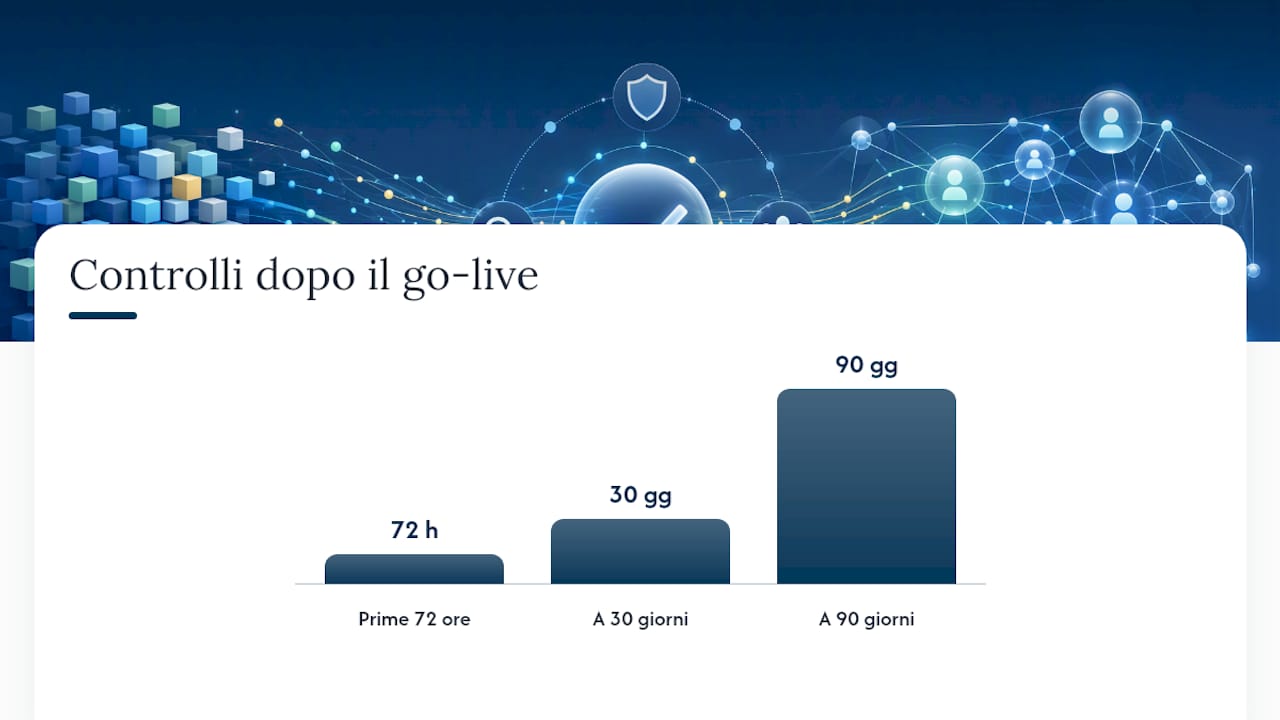
In the first 72 hours after go-live, check:
- that the total counts (companies, contacts, activities) match those expected from the original file;
- that critical fields (email, phone, contact person) are populated and not empty;
- that all team members have the right access and can see the data they should see.
At 30 days, monitor how much the team actually uses the CRM instead of returning to parallel spreadsheets, how many activities are completed inside the tool, and how many remaining duplicates surface in day-to-day use. At 90 days, review the import map if recurring error patterns emerge: profiling and versioned maps let you make systematic corrections instead of chasing each error individually.
Why this method works, and where KeSbatty fits in
The five phases that really matter are inventory, mapping, staging with a backup, a test import, and a controlled switch with old spreadsheets archived. No shortcut replaces this order, because each phase corrects errors from the previous one before they become irreversible.
Excel works well as long as the data stays static. The problem comes when relationships between companies, contacts, and activities start to change: a spreadsheet isn’t designed to manage dynamic relationships, while a CRM turns the scattered memory held in files and people’s heads into a shared resource the whole team can consult.
For a micro-team, KeSbatty simplifies the most delicate parts of the migration:
- modules you can activate only when needed, so you don’t have to configure features you’ll never use;
- centralized management of contacts and activities, useful during post-import reconciliation;
- sending quotes and documents through a public link, without requiring the customer to create an account or log in.
The data is hosted in Europe, and export is always available: a detail that matters when the goal is to avoid getting stuck in a system that’s difficult to leave in the future.
What I really think about this migration
The most common advice on migrating from Excel to a CRM focuses almost entirely on the technical side: mapping, deduplication, and importing. That’s right, but incomplete. The real risk isn’t technical; it’s behavioral: a technically perfect CRM populated with impeccable data still fails if the team doesn’t see a concrete reason to use it instead of the spreadsheet they’ve known by heart for years.
What almost everyone underestimates is that trust is built in the first few days, not the first few months. If someone finds missing or duplicate data during the first week, the instinctive reaction is to go back to Excel “just to be safe.” From there, going back becomes a permanent habit.
The thing I would prioritize above all else, more than technical perfection in the mapping, is communication: tell the team clearly when the old spreadsheets will become read-only, and what to do if something seems to be missing. An impeccable technical process with weak communication almost always fails. An imperfect technical process with clear communication almost never does.
— Fabrizio
Try KeSbatty for a migration without the chaos of five different tools
KeSbatty is designed for people coming from Excel who don’t want to end up with a system as complicated as the problem they were trying to solve. The practical difference from a general-purpose CRM is that you activate modules only when you need them: contacts, appointments, kanban activities, and document sharing, without having to configure features you’ll never use.
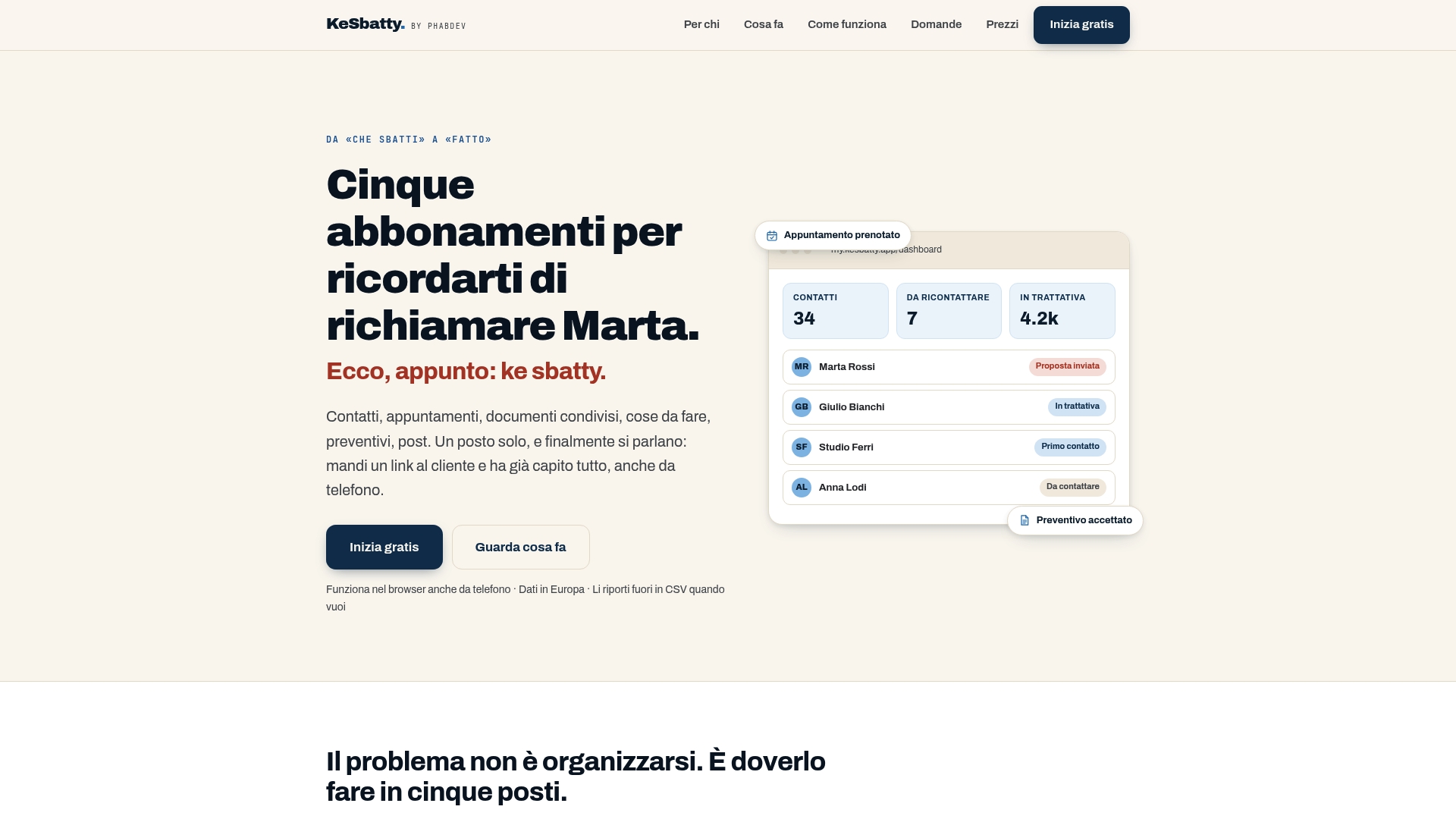
You can send quotes and documents through a public link without asking the customer to create an account, a small detail that saves real time in everyday work. The data is hosted in Europe and export is always available, so you aren’t locked into the platform if you decide to switch tools one day.
The base plan offers a free option with a limited number of contacts, perfect for getting started with your migration without a commitment. To unlock all modules, there’s a full plan with paid monthly or annual subscriptions. Try Kesbatty and start your test import today.
Useful resources and documentation to learn more
Some technical sources can help reinforce the key concepts in this guide:
- The complete procedure for moving from Excel to a CRM goes into inventory, cleanup, and the switch date with practical examples.
- The guide to avoiding duplicates and missing information explains deduplication rules and alternative keys in detail.
- The comparison between CRM migration and a return to chaos explains why team confidence matters as much as data quality.
- The complete CRM migration checklist lists the validation checks to perform before the final transfer.
If you also manage workflows connected to logistics or e-commerce, it’s worth looking at integrations between sales and shipping management platforms as a technical example of connecting different systems without manually duplicating data.
Sources
- How to move from Excel to a CRM without losing data
- How to migrate data and contacts from Excel to a CRM without duplicates or missing information
- CRM migration: why you lose data and confidence in the system
- CRM vs. Excel: when a spreadsheet is no longer enough
Frequently asked questions
How can I create a CRM from an Excel file?
An Excel file can work as an improvised CRM with linked sheets for contacts, companies, and activities, but it can’t manage dynamic relationships or automatic reminders. For stable long-term use, it’s best to map those same columns to a proper CRM that automatically manages notifications, permissions, and history.
How do I turn an Excel file into a proper database?
First, normalize the data into separate, linked tables (companies, contacts, activities), removing duplicates and inconsistent formats. A CRM does this structural work for you by importing data from Excel and maintaining the relationships between tables.
What are the main stages of a CRM migration program?
The five essential stages are file inventory, field mapping, cleanup and deduplication, a test import using a real sample, and a controlled switch with the source spreadsheets archived. Backups and pilot tests before the final transfer reduce the risk of irreversible errors.
What is an easy-to-use CRM for someone coming from Excel?
A CRM suited to someone coming from Excel should activate only the features they really need, without requiring complex setup at the start. A CRM suited to someone coming from Excel should activate only the features they really need, without requiring complex setup at the start. This principle can be found in solutions with modules you can activate on demand and free plans with a limited number of contacts, which are useful for testing a migration without upfront costs.
How long does it take to migrate from Excel to a CRM?
For up to a thousand records with few relationships between companies and contacts, a complete migration generally takes several actual working days. With a large number of records and a complex history of activities and relationships to preserve, it can take several weeks, including the time needed for testing and iterations.